Physical trigger
A modified mouse feeds the left-click signal directly into the measurement unit while also acting as the normal computer mouse.
Physical click-to-photon measurement
Click2Photon is a compact measurement unit for quantifying the end-to-end delay between a physical mouse action and the visible display response on the client screen.
VDI responsiveness depends on input handling, network transit, server processing, display encoding, client rendering and monitor refresh. Click2Photon measures the resulting physical outcome.
A modified mouse feeds the left-click signal directly into the measurement unit while also acting as the normal computer mouse.
An onboard optical sensor detects when the test window changes from black to white, stopping the timer at the actual display response.
The OLED display shows the current reading, minimum, average, maximum and measurement count for practical test runs.
Product brief
The unit is a small microcomputer with a display, optical sensor and a custom 3D printed enclosure. It is supplied with an adapted mouse and the Windows test application.
Approximately 6 x 4 x 2 cm in a custom 3D printed enclosure.
Round trip latency from mouse click to visible display change, typically used in VDI environments.
Displays current, minimum, average and maximum readings, plus the number of captured measurements.
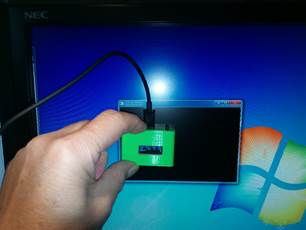
The device is built to sit directly against the display while the modified mouse supplies both normal input and the measurement trigger.
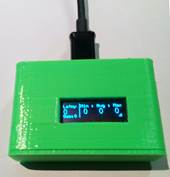
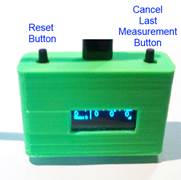
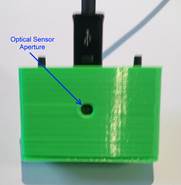
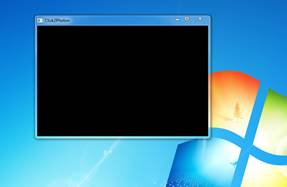
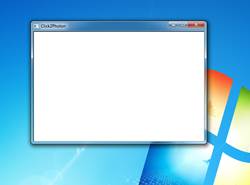
The supplied Windows application turns a test window from black to white while the hardware times the physical interval between click and detected light change.
Plug the mouse USB lead into the computer and connect the micro-USB lead to the Click2Photon unit.
Run the Click2Photon Windows application inside the VDI session or directly on the standalone computer under test.
Hold the back of the unit against the display where the black application window is visible.
Click the modified mouse. The unit records the delay until the optical sensor detects the white screen response.
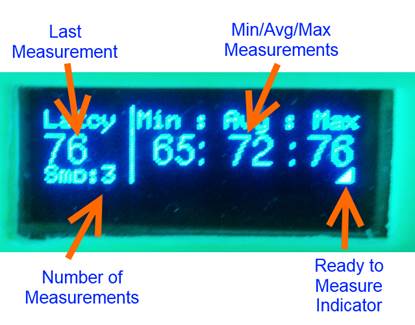
Individual values can vary because the measurement includes mouse handling, software processing, network effects, display composition and frame timing. In normal use, at least ten measurements are taken so the average and maximum values are useful.
Most measurement problems come from startup power glitches, low screen brightness or display power-saving modes that affect the optical sensor.
If the OLED shows speckles instead of the splash screen, disconnect power, wait a few seconds and reconnect the USB lead to restart the device.
If the window turns white but no reading is captured, increase display brightness or connect the laptop to mains power.
Disable Eco or Power Save monitor modes that modulate the backlight, as this can be detected by the optical sensor.